Steps to get location in Android
- Provide permissions in manifest file for receiving location update
- Create LocationManager instance as reference to the location service
- Request location from LocationManager
- Receive location update from LocationListener on change of location
Provide permissions for receiving location update
To access current location information through location providers, we need to set permissions with android manifest file.
<manifest ... >
    <uses-permission android:name="android.permission.ACCESS_FINE_LOCATION" />
   <uses-permission android:name="android.permission. ACCESS_COARSE_LOCATION" />
   <uses-permission android:name="android.permission.INTERNET" />
</manifest>
ACCESS_COARSE_LOCATION is used when we use network location provider for our Android app. But, ACCESS_FINE_LOCATION is providing permission for both providers. INTERNET permission is must for the use of network provider.
Create LocationManager instance as reference to the location service
For any background Android Service, we need to get reference for using it. Similarly, location service reference will be created using getSystemService() method. This reference will be added with the newly created LocationManager instance as follows.
locationManager = (LocationManager) getSystemService(Context.LOCATION_SERVICE);
Request current location from LocationManager
After creating the location service reference, location updates are requested using requestLocationUpdates() method of LocationManager. For this function, we need to send the type of location provider, number of seconds, distance and the LocationListener object over which the location to be updated.
locationManager.requestLocationUpdates(LocationManager.GPS_PROVIDER, 0, 0, this);
Receive location update from LocationListener on change of location
LocationListener will be notified based on the distance interval specified or the number seconds.
Sample Android App: Current Location Finder
This example provides current location update using GPS provider. Entire Android app code is as follows,
package com.javapapers.android.geolocationfinder;

import android.os.Bundle;
import android.app.Activity;
import android.content.Context;
import android.location.Location;
import android.location.LocationListener;
import android.location.LocationManager;
import android.widget.TextView;

import android.util.Log;

public class MainActivity extends Activity implements LocationListener{
protected LocationManager locationManager;
protected LocationListener locationListener;
protected Context context;
TextView txtLat;
String lat;
String provider;
protected String latitude,longitude;
protected boolean gps_enabled,network_enabled;

@Override
protected void onCreate(Bundle savedInstanceState) {
super.onCreate(savedInstanceState);
setContentView(R.layout.activity_main);
txtLat = (TextView) findViewById(R.id.textview1);

locationManager = (LocationManager) getSystemService(Context.LOCATION_SERVICE);
locationManager.requestLocationUpdates(LocationManager.GPS_PROVIDER, 0, 0, this);
}
@Override
public void onLocationChanged(Location location) {
txtLat = (TextView) findViewById(R.id.textview1);
txtLat.setText("Latitude:" + location.getLatitude() + ", Longitude:" + location.getLongitude());
}

@Override
public void onProviderDisabled(String provider) {
Log.d("Latitude","disable");
}

@Override
public void onProviderEnabled(String provider) {
Log.d("Latitude","enable");
}

@Override
public void onStatusChanged(String provider, int status, Bundle extras) {
Log.d("Latitude","status");
}
}
XML files for layout and android manifest are as shown below
<RelativeLayout xmlns:android="http://schemas.android.com/apk/res/android"
    xmlns:tools="http://schemas.android.com/tools"
    android:layout_width="match_parent"
    android:layout_height="match_parent"
    tools:context=".MainActivity" >

    <TextView
        android:id="@+id/textview1"
        android:layout_width="wrap_content"
        android:layout_height="wrap_content"
        android:layout_centerHorizontal="true"
        android:layout_centerVertical="true"
        android:text="@string/hello_world" />

</RelativeLayout>
<?xml version="1.0" encoding="utf-8"?>
<manifest xmlns:android="http://schemas.android.com/apk/res/android"
    package="com.javapapers.android.geolocationfinder"
    android:versionCode="1"
    android:versionName="1.0" >

    <uses-sdk
        android:minSdkVersion="8"
        android:targetSdkVersion="17"        />
    <uses-permission android:name="android.permission.ACCESS_FINE_LOCATION" />
    <application
        android:allowBackup="true"
        android:icon="@drawable/ic_launcher"
        android:label="@string/app_name"
        android:theme="@style/AppBaseTheme" >
        <activity
            android:name="com.javapapers.android.geolocationfinder.MainActivity"
            android:label="@string/app_name" >
            <intent-filter>
                <action android:name="android.intent.action.MAIN" />

                <category android:name="android.intent.category.LAUNCHER" />
            </intent-filter>
        </activity>
    </application>
</manifest>
Android Output
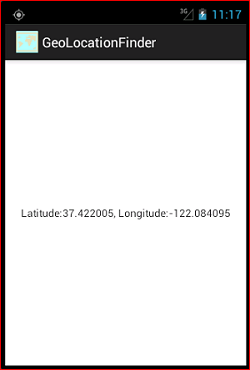
Note: If you are running this Android app with emulator, you need to send the latitude and longitude explicitly for the emulator.
How to send latitude and longitude to android emulator
- Open DDMS perspective in Eclipse (Window -> Open Perspective)
- Select your emulator device
- Select the tab named emulator control
- In ‘Location Controls’ panel, ‘Manual’ tab, give the Longitude and Latitude as input and ‘Send’.
Comments
Post a Comment